1. Overview
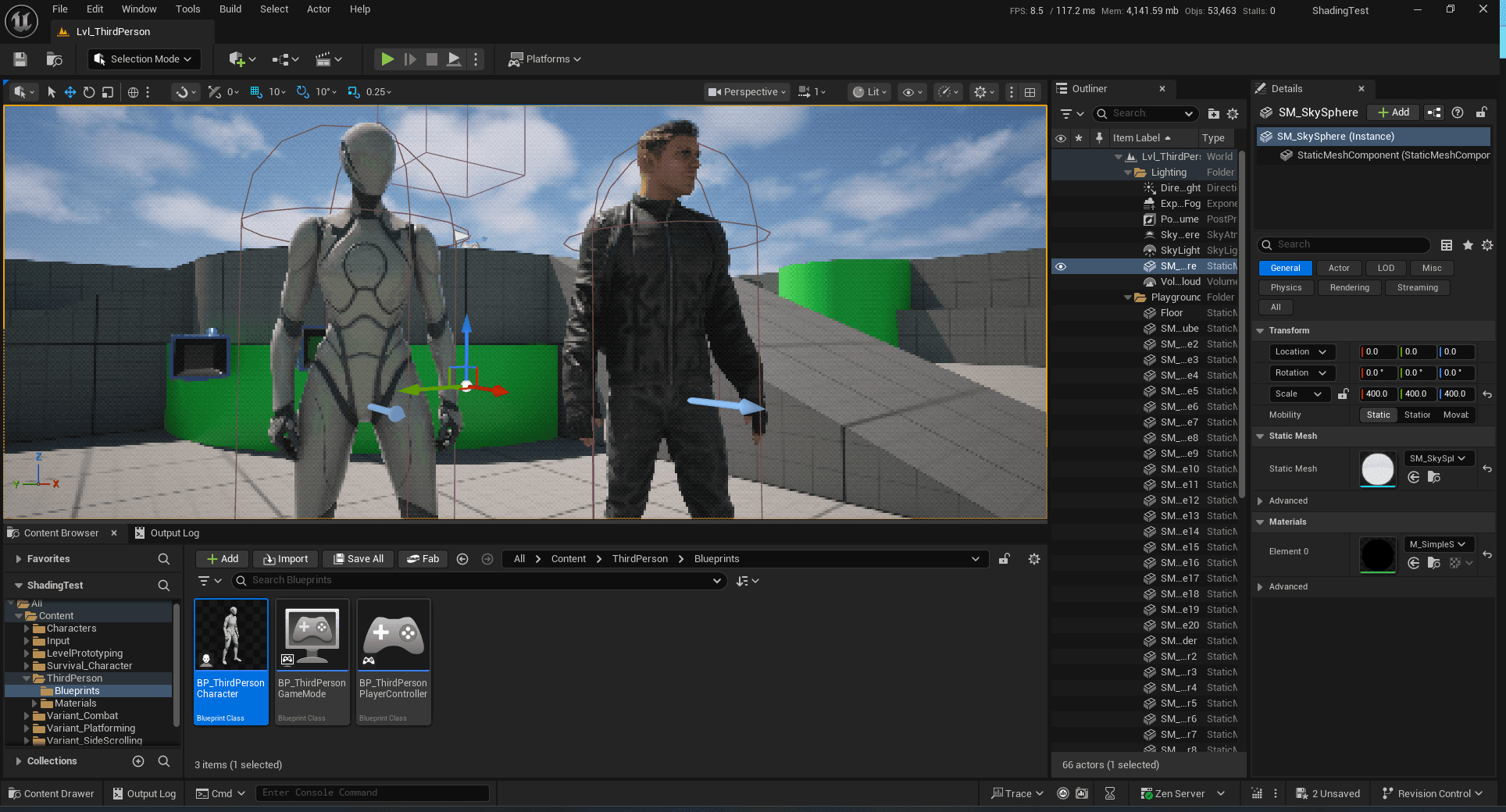
In the previous blog, I implemented a pixelation effect using a post-process material. This time, I want to achieve the same result purely through code, using a custom render pass in UE5. This approach allows rendering logic to be implemented directly in shaders written in HLSL. I will not cover pixelation or other stylization techniques in this blog. Instead, the focus is on the workflow itself. Once this pipeline is in place, I can implement my own rendering styles by writing custom HLSL code.
I will use UE5.6 as the working environment, and the whole project will be packaged as a UE5 plugin. I also uploaded this plugin on GitHub: https://github.com/Billy-FIN/StylizationPP
2. Plugin Structure
Before diving into the implementation, let's understand the structure the plugin. The plugin is organized as follows (StylizationPP is the plugin name):
StylizationPP/
├── Source/
│   └── StylizationPP/
│       ├── Public/
│       │   ├── StylizationPP.h
│       │   ├── StylizationSubsystem.h
│       │   ├── StylizationSettings.h
│       │   ├── CustomSceneViewExtension.h
│       │   ├── PixelArtShader.h
│       │   ├── StylizationSettingsWidget.h
│       │   ├── StylizationPPCommands.h
│       │   └── StylizationPPStyle.h
│       ├── Private/
│       │   ├── StylizationPP.cpp
│       │   ├── StylizationSubsystem.cpp
│       │   ├── CustomSceneViewExtension.cpp
│       │   ├── PixelArtShader.cpp
│       │   ├── StylizationSettingsWidget.cpp
│       │   ├── StylizationPPCommands.cpp
│       │   └── StylizationPPStyle.cpp
│       └── StylizationPP.Build.cs
├── Shaders/
│   └── PixelArtShader.usf
├── Resources/
│   └── Icon128.png
└── StylizationPP.uplugin
This structure separates concerns:
- Public headers define interfaces, shader parameter structures, and UI widget classes
- Private implementations contain the actual logic for rendering and UI
- Shaders/ directory contains HLSL shader code
- Resources/ directory contains UI icons and assets
- Build.cs configures module dependencies
- .uplugin file defines the plugin metadata
Note:
- UE5 does not check the correctness of our HLSL code of shaders. If a problem occurs while compiling shaders, UE5 would close unexpectedly.
- Setting up the plugin is very important because UE5.6 has a big update on engine files that I am going to use. Similar online tutorials and blogs are initially for UE5.4, which are not suitable for our working environment. That's why I got stuck for a long time. I will write about this part as the first step.
3. Plugin Module Setup
The plugin module (StylizationPP.h and StylizationPP.cpp) is responsible for initializing the plugin and registering shader directories. This is crucial because Unreal Engine needs to know where to find your custom shader files.
3.1 Module Header (StylizationPP.h)
#pragma once


#include "Modules/ModuleManager.h"
#include "CoreMinimal.h"
#include "Modules/ModuleInterface.h"
#include "Interfaces/IPluginManager.h"


class FStylizationPPModule : public IModuleInterface
{
public:
    virtual void StartupModule() override;
    virtual void ShutdownModule() override;
};
3.2 Module Implementation (StylizationPP.cpp)
#include "StylizationPP.h"


#define LOCTEXT_NAMESPACE "FStylizationPPModule"


void FStylizationPPModule::StartupModule()
{
    // Register shader directory so UE can find our .usf files
    FString PluginShaderDir = FPaths::Combine(
        IPluginManager::Get().FindPlugin(TEXT("StylizationPP"))->GetBaseDir(),
        TEXT("Shaders")
    );
    AddShaderSourceDirectoryMapping(TEXT("/Plugins/StylizationPP"), PluginShaderDir);
}


void FStylizationPPModule::ShutdownModule()
{
    // Cleanup if needed
}


#undef LOCTEXT_NAMESPACE


IMPLEMENT_MODULE(FStylizationPPModule, StylizationPP)
The key here is AddShaderSourceDirectoryMapping, which maps the virtual shader path /Plugins/StylizationPP to the actual Shaders/ directory in my plugin. This allows me to reference shaders using paths like /Plugins/StylizationPP/PixelArtShader.usf in my C++ code.
3.3 Build Configuration (StylizationPP.Build.cs)
The build file defines module dependencies. For custom render passes, I'll need access to the renderer internals:
public class StylizationPP : ModuleRules
{
    public StylizationPP(ReadOnlyTargetRules Target) : base(Target)
    {
        PCHUsage = ModuleRules.PCHUsageMode.UseExplicitOrSharedPCHs;
        var EngineDir = Path.GetFullPath(Target.RelativeEnginePath);

        PrivateIncludePaths.AddRange(
            new string[] {
                Path.Combine(EngineDir, "Source/Runtime/Renderer/Private"),
                Path.Combine(EngineDir, "Source/Runtime/Renderer/Internal")
            }
        );

        PublicDependencyModuleNames.AddRange(
            new string[] {
                "Core",
            }
        );

        PrivateDependencyModuleNames.AddRange(
            new string[] {
                "CoreUObject",
                "Engine",
                "Slate",
                "SlateCore",
                "RenderCore",
                "Renderer",
                "RHI",
                "Projects",
            }
        );
    }
}
Important dependencies:
- Renderer: Provides access to the render graph and post-processing infrastructure
- RHI: Render Hardware Interface for low-level graphics operations
- RenderCore: Core rendering utilities
3.4 Plugin Configuration (.uplugin)
The subsystem must be configured in the plugin descriptor:
{
    "FileVersion": 3,
    "Version": 1,
    "VersionName": "1.0",
    "FriendlyName": "StylizationPP",
    "Description": "Custom render pass plugin for stylization effects",
    "Category": "Rendering",
    "CreatedBy": "",
    "CanContainContent": true,
    "IsBetaVersion": false,
    "IsExperimentalVersion": false,
    "Modules": [
        {
            "Name": "StylizationPP",
            "Type": "Runtime",
            "LoadingPhase": "PostConfigInit"
        }
    ]
}
The LoadingPhase of PostConfigInit ensures the subsystem initializes early enough to register the scene view extension before rendering begins. This is critical for UE5.6, as the initialization timing has changed from earlier versions.
4. Implementing Pixel Shaders
Pixel shaders are executed during rasterization and are perfect for full-screen post-processing effects. If I want to use a compute shader, I need to modify the code, but the overall process and plugin structure is the same. That also depends on how and when I want to compute the rendering effect. Some online tutorials override prepostprocesspass_renderthread. In this blog, I will not use it, and I will explain it in Section 5.
4.1 Pixel Shader C++ Class (PixelArtShader.h)
#pragma once

#include "SceneTexturesConfig.h"
#include "ShaderParameterStruct.h"
#include "ScreenPass.h"

class STYLIZATIONPP_API FPixelArtShader : public FGlobalShader
{
public:
    DECLARE_GLOBAL_SHADER(FPixelArtShader)
    SHADER_USE_PARAMETER_STRUCT(FPixelArtShader, FGlobalShader);

    BEGIN_SHADER_PARAMETER_STRUCT(FParameters, )
        SHADER_PARAMETER(float, Pixelation)
        SHADER_PARAMETER(float, NumColors)
        SHADER_PARAMETER(float, Spread)
        SHADER_PARAMETER_RDG_TEXTURE(Texture2D, SceneColorTexture)
        SHADER_PARAMETER_SAMPLER(SamplerState, SceneColorSampler)
        SHADER_PARAMETER_STRUCT(FScreenPassTextureViewportParameters, ViewParams)
        RENDER_TARGET_BINDING_SLOTS()
    END_SHADER_PARAMETER_STRUCT()
};
Here, I can declare the parameters of my shader. Later I can obtain and send them to my shader code.
4.2 Pixel Shader Implementation (PixelArtShader.cpp)
#include "PixelArtShader.h"

IMPLEMENT_GLOBAL_SHADER(
    FPixelArtShader,
    "/Plugins/StylizationPP/PixelArtShader.usf",
    "MainPS",
    SF_Pixel
);
Very simple, just to tell UE where my actual shader code is. That .usf file contains my HLSL code. MainPS is a function I define in that .usf file as the entry.
4.3 Pixel Shader HLSL (PixelArtShader.usf)
I have written this part to introduce pixelation in the previous blog. The main logic is to have pixelation + othered dithering + color quantization. You can check the details here.
#include "/Engine/Private/Common.ush"
#include "/Engine/Public/Platform.ush"
#include "/Engine/Private/ScreenPass.ush"

// Shader inputs
SCREEN_PASS_TEXTURE_VIEWPORT(ViewParams)
Texture2D<float4> SceneColorTexture;
SamplerState SceneColorSampler;
float Pixelation;
float NumColors;
float Spread;

float2 PosToUV(float2 Pos)
{
    float2 ViewportUV = ((Pos - ViewParams_ViewportMin.xy) * ViewParams_ViewportSizeInverse.xy);
    return ViewportUV * ViewParams_UVViewportSize + ViewParams_UVViewportMin;
}

float4 MainPS(float4 SvPosition : SV_POSITION) : SV_Target0
{
    // Compute UV coordinates
    float2 UV = PosToUV(SvPosition).xy;

    // Pixelation: quantize UV coordinates
    float PixelCountX = ViewParams_ViewportSize.x / pow(2, Pixelation);
    float PixelCountY = ViewParams_ViewportSize.y / pow(2, Pixelation);

    float2 quantUV;
    quantUV.x = (floor(UV.x * PixelCountX) + 0.5) / PixelCountX;
    quantUV.y = (floor(UV.y * PixelCountY) + 0.5) / PixelCountY;
    quantUV = clamp(quantUV, 0.0, 1.0);

    // Sample scene color
    float3 SceneColor = SceneColorTexture.SampleLevel(SceneColorSampler, quantUV, 0).rgb;

    // Color quantization
    float3 FinalColor = floor((SceneColor * (NumColors - 1) + 0.5)) / (NumColors - 1);

    return float4(FinalColor, 1.0);
}
5. Scene View Extension
The SceneViewExtension is the interface that allows me to hook into Unreal's rendering pipeline. It provides various callback points where I can inject custom rendering logic.
5.1 Scene View Extension Header (CustomSceneViewExtension.h)
#pragma once

#include "PostProcess/PostProcessMaterial.h"
#include "PostProcess/PostProcessing.h"
#include "PixelShaderUtils.h"
#include "StylizationSettings.h"
#include "PixelArtShader.h"

class FCustomSceneViewExtension : public FSceneViewExtensionBase
{
public:
    FCustomSceneViewExtension(const FAutoRegister& AutoRegister);

    /** Update settings from subsystem (called from game thread, used on render thread) */
    void UpdateSettings(const FStylizationSettings& NewSettings);

    // Override to hook into post-processing pipeline
    virtual void SubscribeToPostProcessingPass(
        EPostProcessingPass PassId,
        const FSceneView& View,
        FAfterPassCallbackDelegateArray& InOutPassCallbacks,
        bool bIsPassEnabled
    ) override;

    // Main post-processing callback
    FScreenPassTexture CustomPostProcessing(
        FRDGBuilder& GraphBuilder,
        const FSceneView& View,
        const FPostProcessMaterialInputs& Inputs
    );

    void RunPixelArtPass(
        FRDGBuilder& GraphBuilder,
        const FSceneView& View,
        const FScreenPassTexture& SceneColor,
        const FScreenPassTexture& Output,
        float Pixelation,
        float NumColors,
        float Spread
    );

private:
    /** Thread-safe settings storage (read on render thread, written from game thread) */
    mutable FCriticalSection SettingsCriticalSection;
    FStylizationSettings RenderThreadSettings;
};
5.2 Scene View Extension Implementation (CustomSceneViewExtension.cpp)
This part is where the major functionality is, including selecting which stylization mode (if there are multiple shaders), obtaining shader parameters at the runtime, and adding a render pass.
5.2.1 Initialization and Settings Update
#include "CustomSceneViewExtension.h"

FCustomSceneViewExtension::FCustomSceneViewExtension(const FAutoRegister& AutoRegister)
    : FSceneViewExtensionBase(AutoRegister)
{
    UE_LOG(LogTemp, Log, TEXT("StylizationPP: SceneViewExtension registered"));
}

void FCustomSceneViewExtension::UpdateSettings(const FStylizationSettings& NewSettings)
{
    FScopeLock Lock(&SettingsCriticalSection);
    RenderThreadSettings = NewSettings;
}

void FCustomSceneViewExtension::SubscribeToPostProcessingPass(
    EPostProcessingPass PassId,
    const FSceneView& View,
    FAfterPassCallbackDelegateArray& InOutPassCallbacks,
    bool bIsPassEnabled)
{
    // Hook into the Tonemap pass - a stable point in the post-processing chain
    if (PassId == EPostProcessingPass::Tonemap)
    {
        // Only hook when effect is active
        FStylizationSettings Settings;
        {
            FScopeLock Lock(&SettingsCriticalSection);
            Settings = RenderThreadSettings;
        }

        if (Settings.Mode != EStylizationMode::None)
        {
            InOutPassCallbacks.Add(
                FAfterPassCallbackDelegate::CreateRaw(
                    this,
                    &FCustomSceneViewExtension::CustomPostProcessing));
        }
    }
}
The UpdateSettings method allows the subsystem to update settings from the game thread, which are then safely read on the render thread. The SubscribeToPostProcessingPass method checks if a stylization mode is active before hooking into the post-processing pipeline.
I choose EPostProcessingPass::Tonemap because it does the same as setting up the blendable location of a post process material to be "after tonemapping". There are other choices, like motion blur. Check the UE source code for more information.
Here I don't use prepostprocesspass_renderthread because I want my effect calculated after other post processings. This function is called before the post processing, so the final stylization effect may not be what I expect.
5.2.2 Main Post-Processing Function
FScreenPassTexture FCustomSceneViewExtension::CustomPostProcessing(
    FRDGBuilder& GraphBuilder,
    const FSceneView& SceneView,
    const FPostProcessMaterialInputs& Inputs)
{
    // Extract scene color from post-processing inputs
    FScreenPassTexture SceneColor = FScreenPassTexture::CopyFromSlice(
        GraphBuilder,
        Inputs.GetInput(EPostProcessMaterialInput::SceneColor)
    );

    if (!SceneColor.IsValid())
    {
        UE_LOG(LogTemp, Warning, TEXT("SceneColor is invalid!"));
        return SceneColor;
    }

    const FIntRect ViewRect = SceneView.UnconstrainedViewRect;

    // Thread-safe settings read
    FStylizationSettings Settings;
    {
        FScopeLock Lock(&SettingsCriticalSection);
        Settings = RenderThreadSettings;
    }

    // Check if the engine provided a final target (OverrideOutput)
    FScreenPassTexture Output = Inputs.OverrideOutput;

    if (!Output.IsValid())
    {
        // Fallback: Create our own if Override is null
        FRDGTextureDesc OutputDesc = SceneColor.Texture->Desc;
        OutputDesc.Flags |= TexCreate_RenderTargetable;
        OutputDesc.ClearValue = FClearValueBinding::Black;

        FRDGTextureRef OutputTexture = GraphBuilder.CreateTexture(OutputDesc, TEXT("StylizationPPOutput"));
        Output = FScreenPassTexture(OutputTexture, ViewRect);
    }

    // Route to appropriate shader based on settings
    if (Settings.Mode == EStylizationMode::PixelArt)
    {
        RunPixelArtPass(
            GraphBuilder,
            SceneView,
            SceneColor,
            Output,
            Settings.Pixelation,
            Settings.NumColors,
            Settings.Spread);
        return Output;
    }

    return SceneColor;
}
This function:
- Extracts the scene color texture from post-processing inputs
- Reads settings thread-safely from the render thread
- Creates or uses the provided output texture
- Routes to the appropriate shader based on the settings mode
- Returns the processed (or unprocessed) scene color
If I want to extend this to use a compute shader, I need to add an extra line of code to call AddCopyTexturePass within its if-section.
5.2.3 Executing the Pixel Shader
void FCustomSceneViewExtension::RunPixelArtPass(
    FRDGBuilder& GraphBuilder,
    const FSceneView& View,
    const FScreenPassTexture& SceneColor,
    const FScreenPassTexture& Output,
    float Pixelation,
    float NumColors,
    float Spread)
{
    const FIntRect ViewRect = Output.ViewRect;

    // Set up shader parameters
    FPixelArtShader::FParameters* Params =
        GraphBuilder.AllocParameters<FPixelArtShader::FParameters>();

    Params->SceneColorTexture = SceneColor.Texture;
    Params->SceneColorSampler = TStaticSamplerState<SF_Point>::GetRHI();
    Params->Pixelation = Pixelation;
    Params->NumColors = NumColors;
    Params->Spread = Spread;
    Params->ViewParams = GetScreenPassTextureViewportParameters(
        FScreenPassTextureViewport(SceneColor));

    // Set render target - this is where the shader writes
    Params->RenderTargets[0] = FRenderTargetBinding(
        Output.Texture,
        ERenderTargetLoadAction::ENoAction
    );

    // Get shader instance
    TShaderMapRef<FPixelArtShader> PixelShader(
        GetGlobalShaderMap(View.GetFeatureLevel())
    );

    // Add fullscreen pass
    FPixelShaderUtils::AddFullscreenPass(
        GraphBuilder,
        GetGlobalShaderMap(View.GetFeatureLevel()),
        RDG_EVENT_NAME("PixelArtTonemap"),
        PixelShader,
        Params,
        ViewRect);
}
Here, I bind shader parameters (obtained from settings) and add a custom fullscreen pixel shader pass to Unreal Engine's Render Dependency Graph (RDG). The pass reads the scene color and writes a pixel-art effect to the output render target. Parameters are passed as function arguments rather than being hardcoded, allowing for runtime configuration.
Key differences from compute shaders:
- Uses
FPixelShaderUtils::AddFullscreenPassinstead of compute dispatch - Requires
RENDER_TARGET_BINDING_SLOTS()in parameter struct - Writes to render target instead of UAV
- Automatically handles fullscreen quad generation
Step 6: Settings and Subsystem
6.1 Settings Structure
The plugin uses a settings structure to manage stylization parameters. This allows for easy configuration and thread-safe access from both game and render threads.
6.2 Settings Header (StylizationSettings.h)
#pragma once

#include "CoreMinimal.h"
#include "StylizationSettings.generated.h"

UENUM(BlueprintType)
enum class EStylizationMode : uint8
{
    None        UMETA(DisplayName = "None"),
    PixelArt    UMETA(DisplayName = "Pixel Art")
};

USTRUCT(BlueprintType)
struct STYLIZATIONPP_API FStylizationSettings
{
    GENERATED_BODY()

    UPROPERTY(EditAnywhere, BlueprintReadWrite, Category = "Stylization")
    EStylizationMode Mode = EStylizationMode::None;

    // PixelArt Parameters
    UPROPERTY(EditAnywhere, BlueprintReadWrite, Category = "Pixel Art", meta = (ClampMin = "0.1", ClampMax = "10.0"))
    float Pixelation = 1.0f;

    UPROPERTY(EditAnywhere, BlueprintReadWrite, Category = "Pixel Art", meta = (ClampMin = "2.0", ClampMax = "256.0"))
    float NumColors = 10.0f;

    UPROPERTY(EditAnywhere, BlueprintReadWrite, Category = "Pixel Art", meta = (ClampMin = "0.0", ClampMax = "1.0"))
    float Spread = 0.05f;

    FStylizationSettings()
        : Mode(EStylizationMode::None)
        , Pixelation(1.0f)
        , NumColors(10.0f)
        , Spread(0.05f)
    {}
};
This structure defines:
- The stylization mode enum (None, PixelArt)
- Pixel Art parameters with appropriate ranges
- Default values for all parameters
6.3 Engine Subsystem - Registering the Scene View Extension
I can use UEngineSubsystem for creating and registering the FCustomSceneViewExtension instance. This subsystem initializes early in the engine lifecycle, ensuring our scene view extension is available when rendering begins. The subsystem also manages settings and provides thread-safe access to them.
6.4 Subsystem Header (StylizationSubsystem.h)
#pragma once

#include "CoreMinimal.h"
#include "Subsystems/EngineSubsystem.h"
#include "StylizationSettings.h"
#include "StylizationSubsystem.generated.h"

UCLASS()
class STYLIZATIONPP_API UStylizationSubsystem : public UEngineSubsystem
{
    GENERATED_BODY()

public:
    virtual void Initialize(FSubsystemCollectionBase& Collection) override;
    virtual void Deinitialize() override;

    /** Get current stylization settings (thread-safe) */
    FStylizationSettings GetSettings() const;

    /** Set stylization settings (thread-safe) */
    void SetSettings(const FStylizationSettings& NewSettings);

private:
    TSharedPtr<class FCustomSceneViewExtension, ESPMode::ThreadSafe> CustomSceneViewExtension;

    /** Thread-safe settings storage */
    mutable FCriticalSection SettingsCriticalSection;
    FStylizationSettings CurrentSettings;
};
Key points:
- Inherits from
UEngineSubsystemfor global engine-level initialization - Uses
TSharedPtrwithESPMode::ThreadSafebecause scene view extensions are accessed from the render thread - Provides thread-safe getter and setter methods for settings
- The subsystem is automatically instantiated by Unreal Engine
6.5 Subsystem Implementation (StylizationSubsystem.cpp)
#include "StylizationSubsystem.h"
#include "CustomSceneViewExtension.h"
#include "SceneViewExtension.h"

void UStylizationSubsystem::Initialize(FSubsystemCollectionBase& Collection)
{
    // Create and register the scene view extension
    CustomSceneViewExtension = FSceneViewExtensions::NewExtension<FCustomSceneViewExtension>();

    // Initialize extension with default settings
    if (CustomSceneViewExtension.IsValid())
    {
        CustomSceneViewExtension->UpdateSettings(CurrentSettings);
    }

    UE_LOG(LogTemp, Log, TEXT("StylizationPP: Subsystem initialized & SceneViewExtension created"));
}

void UStylizationSubsystem::Deinitialize()
{
    // Properly deactivate the extension before destroying it
    if (CustomSceneViewExtension.IsValid())
    {
        CustomSceneViewExtension->IsActiveThisFrameFunctions.Empty();

        FSceneViewExtensionIsActiveFunctor IsActiveFunctor;
        IsActiveFunctor.IsActiveFunction = [](const ISceneViewExtension* SceneViewExtension, const FSceneViewExtensionContext& Context)
        {
            return TOptional<bool>(false);
        };

        CustomSceneViewExtension->IsActiveThisFrameFunctions.Add(IsActiveFunctor);
    }

    CustomSceneViewExtension.Reset();
    CustomSceneViewExtension = nullptr;
}

FStylizationSettings UStylizationSubsystem::GetSettings() const
{
    FScopeLock Lock(&SettingsCriticalSection);
    return CurrentSettings;
}

void UStylizationSubsystem::SetSettings(const FStylizationSettings& NewSettings)
{
    {
        FScopeLock Lock(&SettingsCriticalSection);
        CurrentSettings = NewSettings;
    }

    // Notify the scene view extension about the settings change
    if (CustomSceneViewExtension.IsValid())
    {
        CustomSceneViewExtension->UpdateSettings(NewSettings);
    }
}
The Initialize method:
- Creates a new
FCustomSceneViewExtensioninstance usingFSceneViewExtensions::NewExtension - Initializes the extension with default settings
- This automatically registers the extension with Unreal's rendering system
- The extension will now receive callbacks during the rendering pipeline
The Deinitialize method:
- Properly deactivates the extension before cleanup
- Prevents any render thread access after the subsystem is destroyed
- Resets the shared pointer to release resources
The GetSettings and SetSettings methods:
- Provide thread-safe access to settings from the game thread
- When settings are updated, they are automatically propagated to the scene view extension
- The extension reads these settings on the render thread in a thread-safe manner
6.6 Usage
Once the plugin is loaded, you can control the stylization mode and parameters by accessing the subsystem:
// Get the subsystem
UStylizationSubsystem* Subsystem = GEngine->GetEngineSubsystem<UStylizationSubsystem>();

// Get current settings
FStylizationSettings Settings = Subsystem->GetSettings();

// Modify settings
Settings.Mode = EStylizationMode::PixelArt;
Settings.Pixelation = 2.0f;
Settings.NumColors = 16.0f;
Settings.Spread = 0.1f;

// Apply settings
Subsystem->SetSettings(Settings);
Settings can also be accessed from Blueprints since the subsystem and settings structure are marked with UCLASS and USTRUCT macros.
7. User Interface Implementation
To provide a user-friendly way to control the stylization settings, I can create a Slate-based UI that integrates into the Unreal Editor. This section covers creating a settings window with sliders and combo boxes.
7.1 UI Commands
First, I need to define UI commands that will trigger the settings window. This is done through Unreal's command system.
7.1.1 Commands Header (StylizationPPCommands.h)
#pragma once

#include "CoreMinimal.h"
#include "Framework/Commands/Commands.h"
#include "Styling/AppStyle.h"

class FStylizationPPCommands : public TCommands<FStylizationPPCommands>
{
public:
    FStylizationPPCommands()
        : TCommands<FStylizationPPCommands>(
            TEXT("StylizationPP"),
            NSLOCTEXT("Contexts", "StylizationPP", "StylizationPP Plugin"),
            NAME_None,
            FAppStyle::GetAppStyleSetName())
    {
    }

    virtual void RegisterCommands() override;

public:
    TSharedPtr<FUICommandInfo> OpenStylizationSettings;
};
7.1.2 Commands Implementation (StylizationPPCommands.cpp)
#include "StylizationPPCommands.h"
#include "Framework/MultiBox/MultiBoxBuilder.h"

#define LOCTEXT_NAMESPACE "FStylizationPPCommands"

void FStylizationPPCommands::RegisterCommands()
{
    UI_COMMAND(OpenStylizationSettings, "Stylization Settings", "Open the stylization settings window", EUserInterfaceActionType::Button, FInputChord());
}

#undef LOCTEXT_NAMESPACE
7.2 Style Setup
I need to register icons and styles for the UI. This is handled through a style set.
7.2.1 Style Header (StylizationPPStyle.h)
#pragma once

#include "CoreMinimal.h"
#include "Styling/SlateStyle.h"

class FSlateStyleSet;

class FStylizationPPStyle
{
public:
    static void Initialize();
    static void Shutdown();
    static FName GetStyleSetName();
    static const ISlateStyle& Get();

private:
    static TSharedRef<FSlateStyleSet> Create();
    static TSharedPtr<FSlateStyleSet> StyleInstance;
};
7.2.2 Style Implementation (StylizationPPStyle.cpp)
#include "StylizationPPStyle.h"
#include "Styling/SlateStyleRegistry.h"
#include "Framework/Application/SlateApplication.h"
#include "Slate/SlateGameResources.h"
#include "Interfaces/IPluginManager.h"
#include "Styling/SlateStyleMacros.h"
#include "Misc/Paths.h"

TSharedPtr<FSlateStyleSet> FStylizationPPStyle::StyleInstance = nullptr;

void FStylizationPPStyle::Initialize()
{
    if (!StyleInstance.IsValid())
    {
        StyleInstance = Create();
        FSlateStyleRegistry::RegisterSlateStyle(*StyleInstance);
    }
}

void FStylizationPPStyle::Shutdown()
{
    FSlateStyleRegistry::UnRegisterSlateStyle(*StyleInstance);
    ensure(StyleInstance.IsUnique());
    StyleInstance.Reset();
}

FName FStylizationPPStyle::GetStyleSetName()
{
    static FName StyleSetName(TEXT("StylizationPPStyle"));
    return StyleSetName;
}

const FVector2D Icon20x20(20.0f, 20.0f);

TSharedRef<FSlateStyleSet> FStylizationPPStyle::Create()
{
    TSharedRef<FSlateStyleSet> Style = MakeShareable(new FSlateStyleSet("StylizationPPStyle"));

    TSharedPtr<IPlugin> Plugin = IPluginManager::Get().FindPlugin("StylizationPP");
    if (Plugin.IsValid())
    {
        Style->SetContentRoot(Plugin->GetBaseDir() / TEXT("Resources"));
        Style->Set("StylizationPP.OpenStylizationSettings", new IMAGE_BRUSH(TEXT("Icon"), Icon20x20));
    }

    return Style;
}

const ISlateStyle& FStylizationPPStyle::Get()
{
    return *StyleInstance;
}
The style system:
- Registers a style set for the plugin
- Loads icons from the
Resources/directory - Provides a way to reference styles throughout the UI
7.3 Settings Widget
The settings widget is a Slate compound widget that provides a UI for editing stylization parameters.
7.3.1 Widget Header (StylizationSettingsWidget.h)
#pragma once

#include "CoreMinimal.h"
#include "StylizationSettings.h"
#include "Widgets/SCompoundWidget.h"

// Forward declarations for Slate widgets
class SSlider;
class STextBlock;
class SButton;
class SVerticalBox;
class SHorizontalBox;

class STYLIZATIONPP_API SStylizationSettingsWidget : public SCompoundWidget
{
public:
    SLATE_BEGIN_ARGS(SStylizationSettingsWidget)
    {}
    SLATE_END_ARGS()

    void Construct(const FArguments& InArgs);

private:
    /** Get the subsystem */
    class UStylizationSubsystem* GetSubsystem() const;

    /** Callbacks */
    FReply OnConfirmClicked();
    FReply OnCancelClicked();
    void OnModeChanged(EStylizationMode NewMode);
    void OnPixelationChanged(float NewValue);
    void OnNumColorsChanged(float NewValue);
    void OnSpreadChanged(float NewValue);

    /** Update UI visibility based on selected mode */
    void UpdateParameterVisibility();

    /** Current settings (local copy for editing) */
    FStylizationSettings CurrentSettings;

    /** UI Widgets */
    TSharedPtr<class SComboBox<TSharedPtr<FString>>> ModeComboBox;
    TSharedPtr<class SSlider> PixelationSlider;
    TSharedPtr<class SSlider> NumColorsSlider;
    TSharedPtr<class SSlider> SpreadSlider;
    TSharedPtr<class STextBlock> PixelationValueText;
    TSharedPtr<class STextBlock> NumColorsValueText;
    TSharedPtr<class STextBlock> SpreadValueText;

    /** Mode options */
    TArray<TSharedPtr<FString>> ModeOptions;
    TSharedPtr<SWidget> PixelArtParameters;
};
7.3.2 Widget Implementation Overview
The widget implementation creates a UI with:
- A combo box for mode selection (None, Pixel Art)
- Sliders for each parameter (Pixelation, Num Colors, Spread)
- Value text displays showing current slider values
- Confirm and Cancel buttons
Key features:
- Mode Selection: Combo box that updates the visible parameters based on selected mode
- Parameter Sliders: Each slider has a step size for easier control and rounds values appropriately
- Real-time Updates: Values are displayed next to sliders and updated as the user drags
- Thread-safe: Settings are applied through the subsystem which handles thread safety
7.3.3 Widget Implementation Key Parts
The widget construction loads settings and builds the UI:
void SStylizationSettingsWidget::Construct(const FArguments& InArgs)
{
    // Get initial settings from subsystem
    UStylizationSubsystem* Subsystem = GetSubsystem();
    if (Subsystem)
    {
        CurrentSettings = Subsystem->GetSettings();
    }

    // Build mode options
    ModeOptions.Add(MakeShared<FString>(TEXT("None")));
    ModeOptions.Add(MakeShared<FString>(TEXT("Pixel Art")));

    // Create UI layout with Slate's declarative syntax
    ChildSlot
    [
        SNew(SVerticalBox)
        // Title, Mode Selection, Parameter Sliders, Buttons...
    ];

    // Update parameter visibility based on selected mode
    UpdateParameterVisibility();
}
The callbacks handle user interactions:
void SStylizationSettingsWidget::OnPixelationChanged(float NewValue)
{
    // Round to 0.1 increments for easier control
    float RoundedValue = FMath::RoundToFloat(NewValue * 10.0f) / 10.0f;
    CurrentSettings.Pixelation = FMath::Clamp(RoundedValue, 0.1f, 10.0f);
    if (PixelationValueText.IsValid())
    {
        PixelationValueText->SetText(FText::AsNumber(CurrentSettings.Pixelation));
    }
}

void SStylizationSettingsWidget::OnNumColorsChanged(float NewValue)
{
    // Round to 1.0 increments for easier control
    float RoundedValue = FMath::RoundToFloat(NewValue);
    CurrentSettings.NumColors = FMath::Clamp(RoundedValue, 2.0f, 256.0f);
    if (NumColorsValueText.IsValid())
    {
        NumColorsValueText->SetText(FText::AsNumber(CurrentSettings.NumColors));
    }
}

void SStylizationSettingsWidget::OnSpreadChanged(float NewValue)
{
    // Round to 0.01 increments for easier control
    float RoundedValue = FMath::RoundToFloat(NewValue * 100.0f) / 100.0f;
    CurrentSettings.Spread = FMath::Clamp(RoundedValue, 0.0f, 1.0f);
    if (SpreadValueText.IsValid())
    {
        SpreadValueText->SetText(FText::AsNumber(CurrentSettings.Spread));
    }
}

FReply SStylizationSettingsWidget::OnConfirmClicked()
{
    UStylizationSubsystem* Subsystem = GetSubsystem();
    if (Subsystem)
    {
        Subsystem->SetSettings(CurrentSettings);
    }

    // Close the window
    TSharedPtr<SWindow> ParentWindow = FSlateApplication::Get().FindWidgetWindow(AsShared());
    if (ParentWindow.IsValid())
    {
        ParentWindow->RequestDestroyWindow();
    }

    return FReply::Handled();
}
Key implementation details:
- Value Rounding: Each parameter callback rounds values to appropriate increments (0.1, 1.0, 0.01) for easier control
- Real-time Display: Value text blocks are updated immediately as sliders are dragged
- Thread Safety: Settings are applied through the subsystem which handles thread-safe updates
- Visibility Management: Parameter panels are shown/hidden based on selected mode
7.4 Module Integration
The UI is integrated into the module's startup process and adds a toolbar button.
7.4.1 Module Updates (StylizationPP.cpp)
#include "StylizationPP.h"

#if WITH_EDITOR
#include "StylizationPPCommands.h"
#include "StylizationPPStyle.h"
#include "StylizationSettingsWidget.h"
#include "ToolMenus.h"
#include "LevelEditor.h"
#include "Framework/MultiBox/MultiBoxBuilder.h"
#include "Widgets/SWindow.h"
#include "Framework/Application/SlateApplication.h"
#include "Styling/AppStyle.h"
#include "Interfaces/IPluginManager.h"
#endif

void FStylizationPPModule::StartupModule()
{
    // Register shader directory
    FString PluginShaderDir = FPaths::Combine(
        IPluginManager::Get().FindPlugin(TEXT("StylizationPP"))->GetBaseDir(),
        TEXT("Shaders")
    );
    AddShaderSourceDirectoryMapping(TEXT("/Plugins/StylizationPP"), PluginShaderDir);

#if WITH_EDITOR
    // Initialize UI components
    FStylizationPPStyle::Initialize();
    FStylizationPPCommands::Register();

    PluginCommands = MakeShareable(new FUICommandList);

    PluginCommands->MapAction(
        FStylizationPPCommands::Get().OpenStylizationSettings,
        FUIAction(
            FExecuteAction::CreateRaw(this, &FStylizationPPModule::PluginButtonClicked)
        ));

    UToolMenus::RegisterStartupCallback(FSimpleMulticastDelegate::FDelegate::CreateRaw(this, &FStylizationPPModule::RegisterMenus));
#endif
}

void FStylizationPPModule::ShutdownModule()
{
#if WITH_EDITOR
    UToolMenus::UnRegisterStartupCallback(this);
    UToolMenus::UnregisterOwner(this);
    FStylizationPPCommands::Unregister();
    FStylizationPPStyle::Shutdown();
#endif
}

#if WITH_EDITOR
void FStylizationPPModule::PluginButtonClicked()
{
    // Create the widget
    TSharedRef<SStylizationSettingsWidget> SettingsWidget = SNew(SStylizationSettingsWidget);

    // Create the window
    TSharedRef<SWindow> Window = SNew(SWindow)
        .Title(FText::FromString(TEXT("Stylization Settings")))
        .ClientSize(FVector2D(500, 400))
        .SupportsMaximize(false)
        .SupportsMinimize(false)
        [
            SettingsWidget
        ];

    // Show the window
    FSlateApplication::Get().AddWindow(Window);
}

void FStylizationPPModule::RegisterMenus()
{
    // Owner will be used for cleanup in call to UToolMenus::UnregisterOwner
    FToolMenuOwnerScoped OwnerScoped(this);

    {
        UToolMenu* ToolbarMenu = UToolMenus::Get()->ExtendMenu("LevelEditor.LevelEditorToolBar.PlayToolBar");
        {
            FToolMenuSection& Section = ToolbarMenu->FindOrAddSection("PluginTools");
            {
                FToolMenuEntry& Entry = Section.AddEntry(FToolMenuEntry::InitToolBarButton(FStylizationPPCommands::Get().OpenStylizationSettings));
                Entry.SetCommandList(PluginCommands);
                Entry.Icon = FSlateIcon(FStylizationPPStyle::GetStyleSetName(), "StylizationPP.OpenStylizationSettings");
            }
        }
    }
}
#endif
This integration:
- Initializes the style system and commands on module startup
- Registers a toolbar button in the Level Editor's play toolbar
- Creates and displays the settings window when the button is clicked
- Properly cleans up on module shutdown
7.5 Build Configuration Updates
The build file needs additional dependencies for UI components. These should be conditionally included only when building the editor:
PublicDependencyModuleNames.AddRange(
    new string[] {
        "Core",
        "InputCore",  // Required for EKeys used by Slate widgets
    }
);

PrivateDependencyModuleNames.AddRange(
    new string[] {
        "CoreUObject",
        "Engine",
        "Slate",
        "SlateCore",
        "RenderCore",
        "Renderer",
        "RHI",
        "Projects",
    }
);

if (Target.bBuildEditor)
{
    PrivateDependencyModuleNames.AddRange(
        new string[] {
            "EditorStyle",      // For editor styling (UE5.6 uses AppStyle)
            "EditorWidgets",    // For editor widgets
            "ToolMenus",        // For menu integration
            "LevelEditor",      // For toolbar integration
            "UnrealEd"          // For editor functionality
        }
    );
}
This ensures UI code only compiles in editor builds, keeping the runtime module clean.
7.6 UI Usage
Once the plugin is loaded:
- A button appears in the Level Editor toolbar (next to Play button)
- Clicking the button opens the Stylization Settings window
- Users can select a mode and adjust parameters with sliders
- Clicking "Confirm" applies the settings, "Cancel" discards changes
- Settings are immediately applied to the rendering pipeline
The UI provides a user-friendly alternative to programmatic settings access, making it easy for artists and designers to experiment with different stylization parameters in real-time.
8. Extending the Pipeline
Now that you have the basic pipeline in place, you can easily add new effects:
- Add a new mode to the enum in
StylizationSettings.h - Add parameters to
FStylizationSettingsif needed - Create a new shader class (inherit from
FGlobalShader) - Write HLSL code in a
.usffile - Add execution function in
CustomSceneViewExtension - Route from main function based on settings mode
For the UI part, I don't think we should pay much attention on figuring that out. Cursor and other AI agents do well in this kind of work. Let them cook then.
9. References
- Unreal Engine 5 plugin template for adding a custom rending pass into the engine with a SceneViewExtension: https://github.com/A57R4L/SceneViewExtensionTemplate
- 虚幻引擎之浅谈SceneViewExtension: https://ruochenhua.github.io/2025/05/01/UE-SceneViewExtension/
- (UE5.4) Creating shaders in UE5 with HLSL: https://karolinamot.github.io/HLSL-and-ue5-blog/
「End」